How to Install Manok Na Pula Mod APK
Installing Manok Na Pula Mod APK is a five-minute process on most devices, but the two things that actually stop an install — a mismatched app signature and a Google Play Protect block — need more than “tap install and hope.” What follows is the Android permission model for every OS version still in use, the exact menu path on the device makers that dominate this game’s player base, the real mechanism behind a Play Protect warning, and the full fix for the single most common failure: “App not installed.”

QUICK FACTS
TIME
About 5 minutes
LEVEL
Beginner-friendly
PLATFORMS
Android · iOS · PC
MAIN BLOCKERS
Signature conflict · Play Protect
STORAGE
300 MB free minimum
What You Need Before Installing
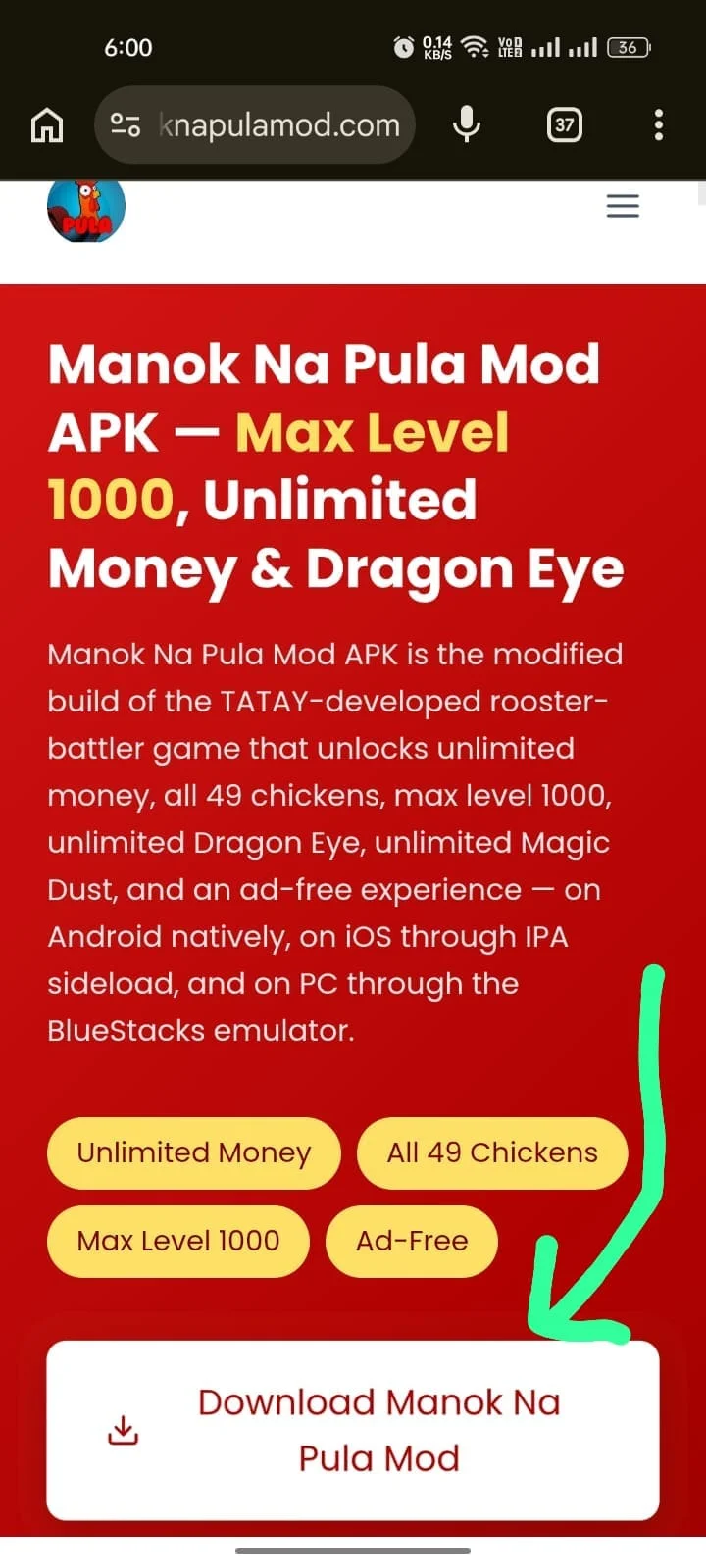
Three things need to be true before the install itself: enough free storage, the ability to install from outside the Play Store turned on for the app you’re using to open the file, and a complete, unmodified download of the APK.
Storage
300 MB free is the practical floor; less than that produces installs that silently fail partway through rather than a clear error.
Install permission
Covered device-by-device and version-by-version below — this is the step every install failure traces back to when it isn’t the signature conflict.
A complete file
If the download was interrupted, the install fails in a way that looks identical to a permission problem. The check for this is below.
If the official Manok Na Pula is already on the device, keep reading before uninstalling it — the order matters for save data, covered in its own section below.
Android Version & Permission Model: What Changes Where
Android has changed how it grants install-from-outside-the-Play-Store permission three times since 2015, and which model applies depends entirely on the device’s Android version — not its brand.
Android version
Permission model
Where it lives
What’s different
5.0–7.1 (Lollipop–Nougat)
Single global toggle
Settings → Security → Unknown sources
One switch covers every app; stays on until manually turned off
8.0–12
Per-app toggle
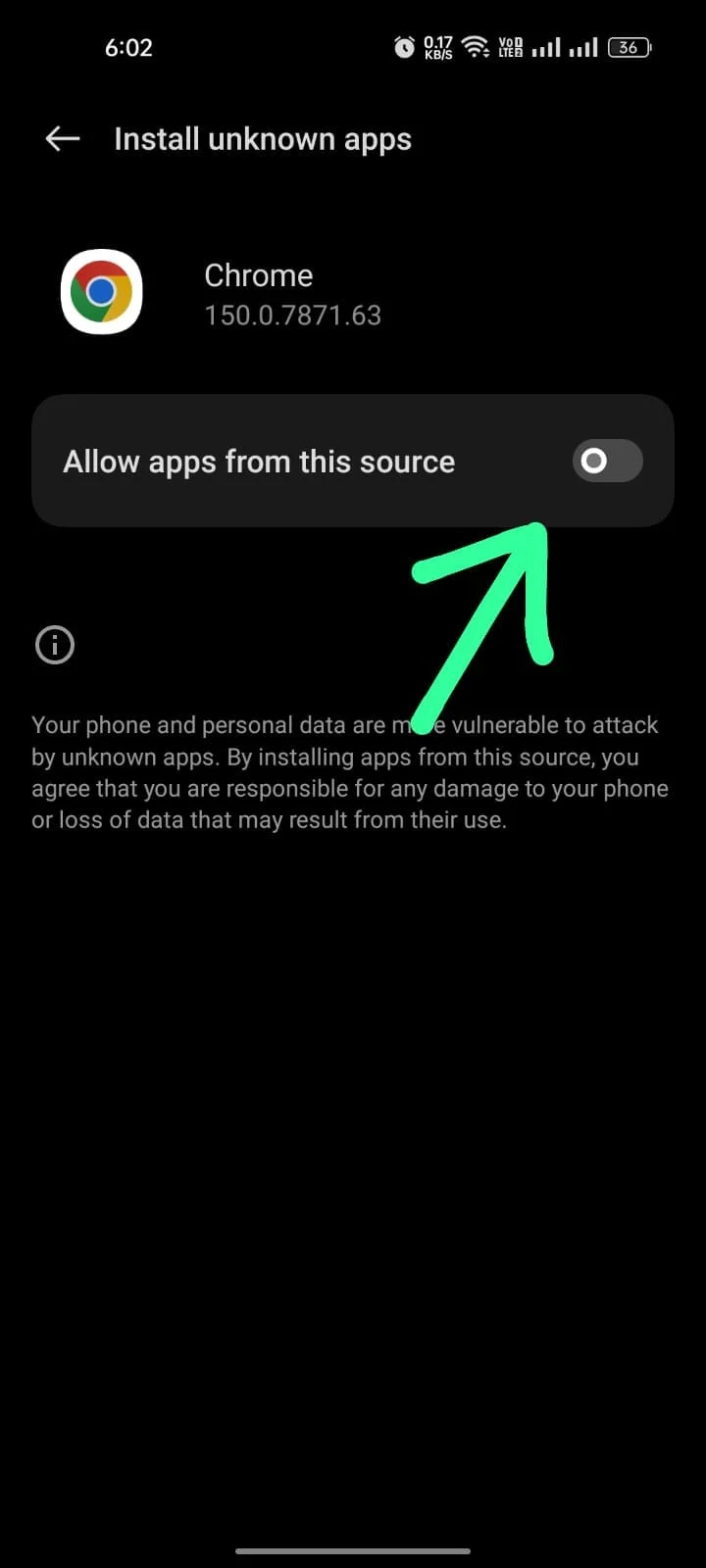
Settings → Apps → [installing app] → Install unknown apps → Allow
Introduced in Android 8 — the global toggle was removed; each app that installs APKs needs its own grant
13 and later
Per-app toggle, off by default
Same per-app path, but starts blocked
Android 13 turned it off by default system-wide, and Play Protect began blocking sideloads that declare sensitive permissions
The practical read: check your Android version first (Settings → About phone → Android version), then use the matching row. An Android 14 device starts with Play Protect actively working against the install rather than passively warning — which is why the Play Protect section below treats it as a distinct step.
Enabling Installs by Device Maker
The per-app toggle lives in a different menu on every manufacturer’s Android skin. Check your device’s own Settings search if the exact wording differs.
Samsung (One UI)
Settings → Apps → three-dot menu / “Special access” → Install unknown apps → select the app you’re installing with → toggle Allow. Enabling it for Chrome does not enable it for Samsung Internet or a different Files app.
Xiaomi (HyperOS / MIUI)
Settings → Additional settings → Privacy → Special app access → Install unknown apps → select the app → Allow. MIUI also runs its own scan with an “I’m aware” prompt — closing it instead of confirming is the most common Xiaomi-specific silent failure.
OnePlus, Realme, Pixel & others
OnePlus/Realme: Settings → Apps & notifications → Special app access → Install unknown apps. Pixel/near-stock: Settings → Apps → Special app access. Huawei (EMUI, no GMS): Settings → Security → More settings → Install apps from external sources. Vivo: Settings → More settings → Permission management. Tecno/Infinix: turn off battery saver first — it can pause an install mid-flow.
Enabling Installs by Browser
The per-app permission model means the app you use to download the file is the one that needs the grant, not the app you use to open it, if those differ. Enabling installs for Chrome does nothing for Samsung Internet, Firefox, or Edge — each is a separate app with its own permission entry. If you downloaded in one browser but open through a separate file manager, that file manager needs its own grant too; this is the single most common reason a permission that was “already turned on” still blocks the install — it was turned on for the wrong app.
Step-by-Step: Installing the APK
With storage confirmed, the permission granted for the correct app, and a complete download in hand, the install itself is short.
- Uninstall the official Manok Na Pula first, if it’s on the device. The section below explains why this is non-negotiable and how to keep your save data.
- Confirm the permission grant matches your Android version and device maker from the sections above.
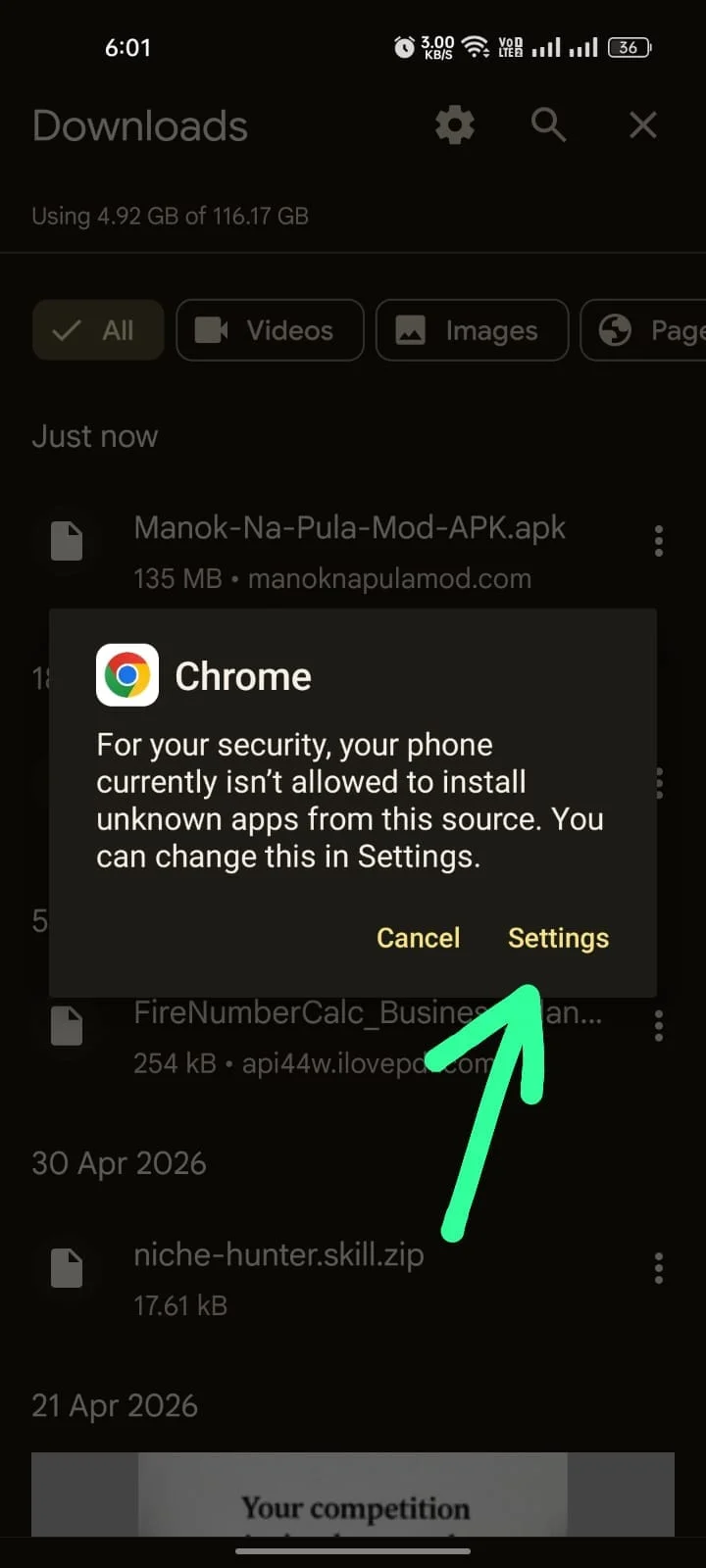
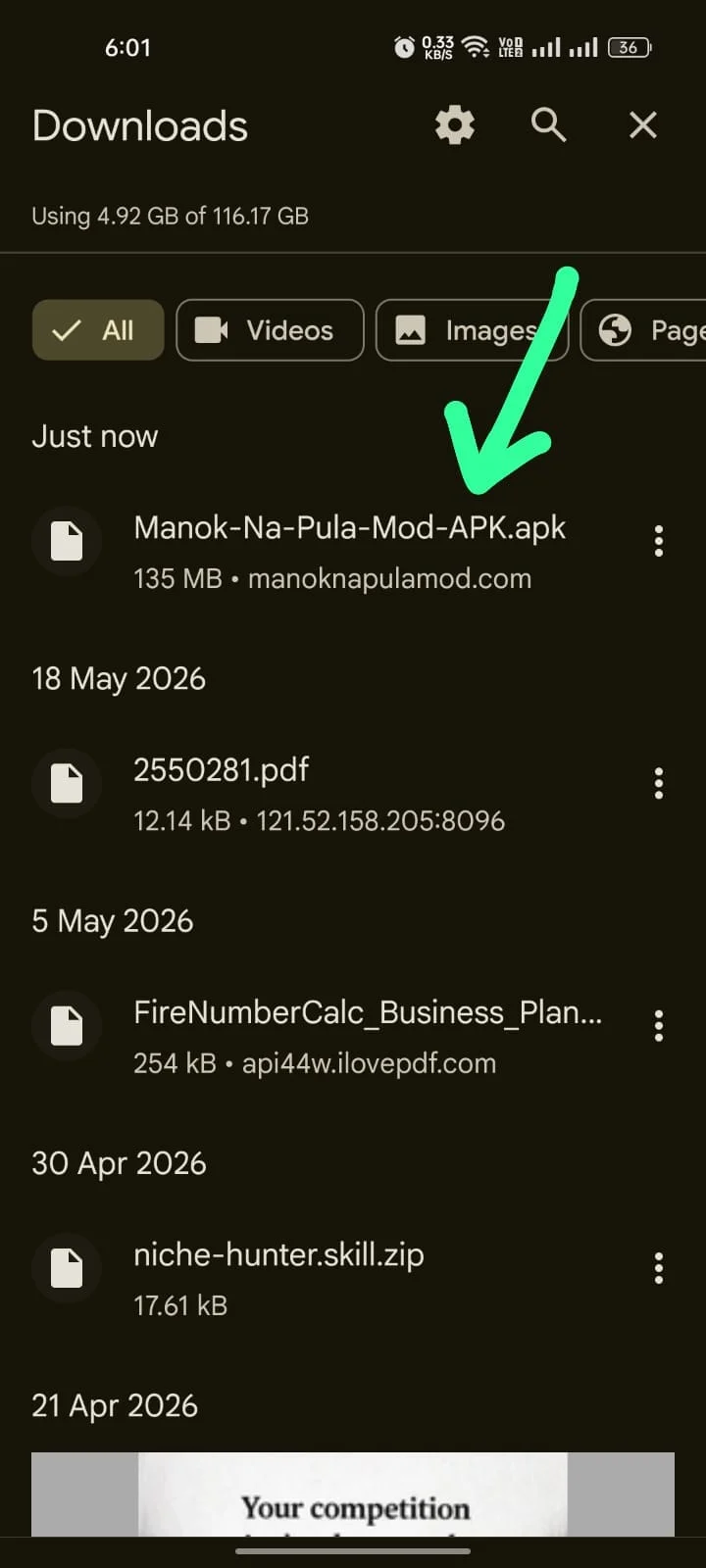
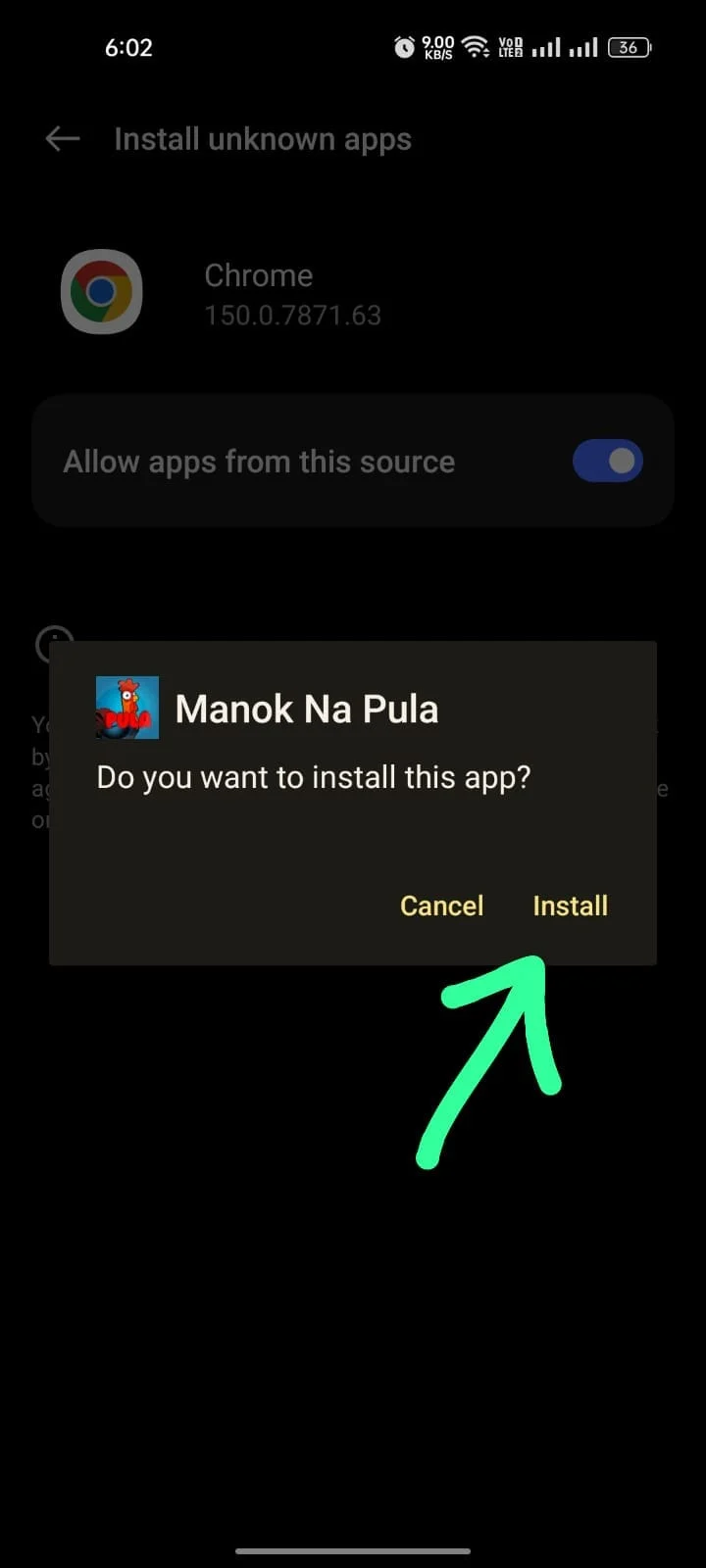
- Open the downloaded file from your browser’s download notification, or from Files → Downloads.
- Tap the APK, then tap Install when prompted.
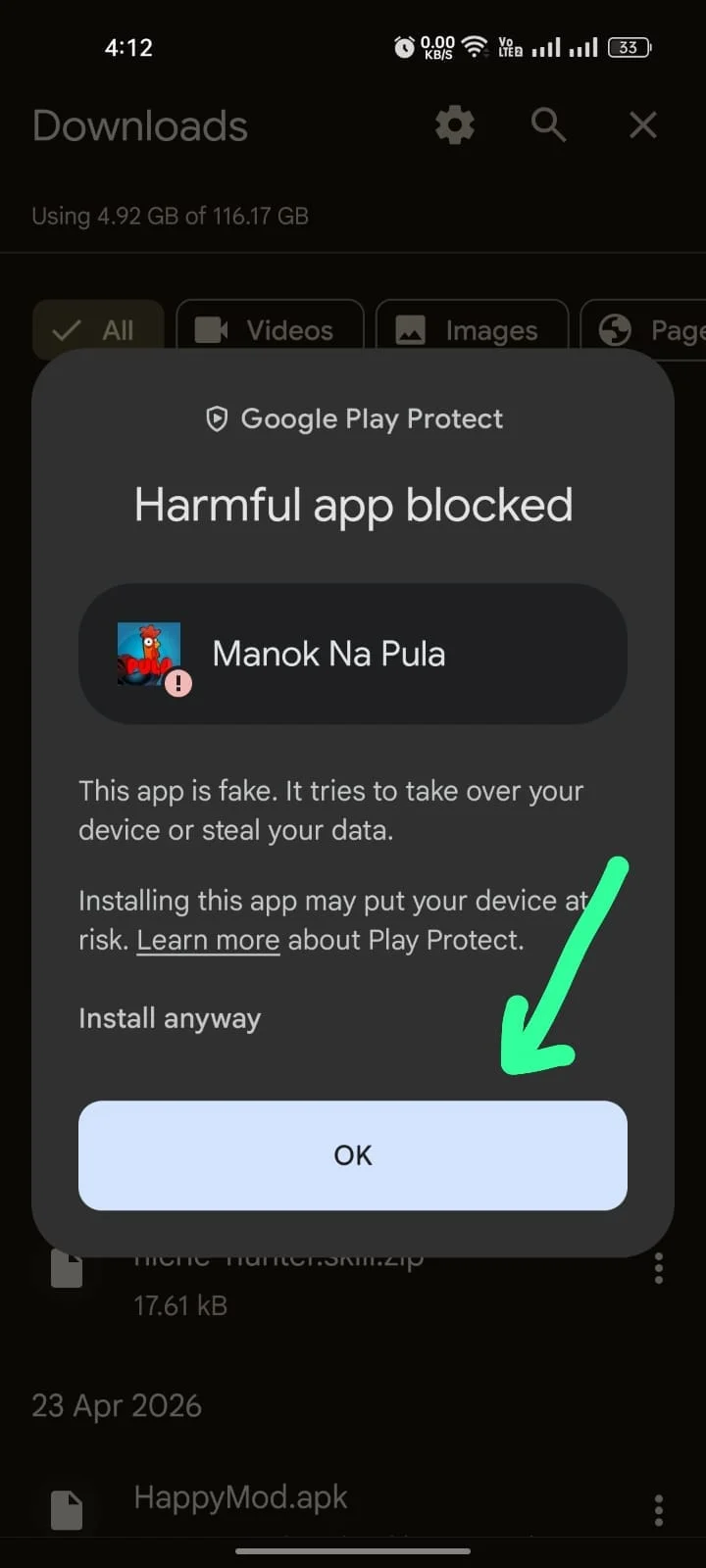
- Handle the Google Play Protect prompt that appears — covered in full next; don’t dismiss it without reading which variant you’re seeing.
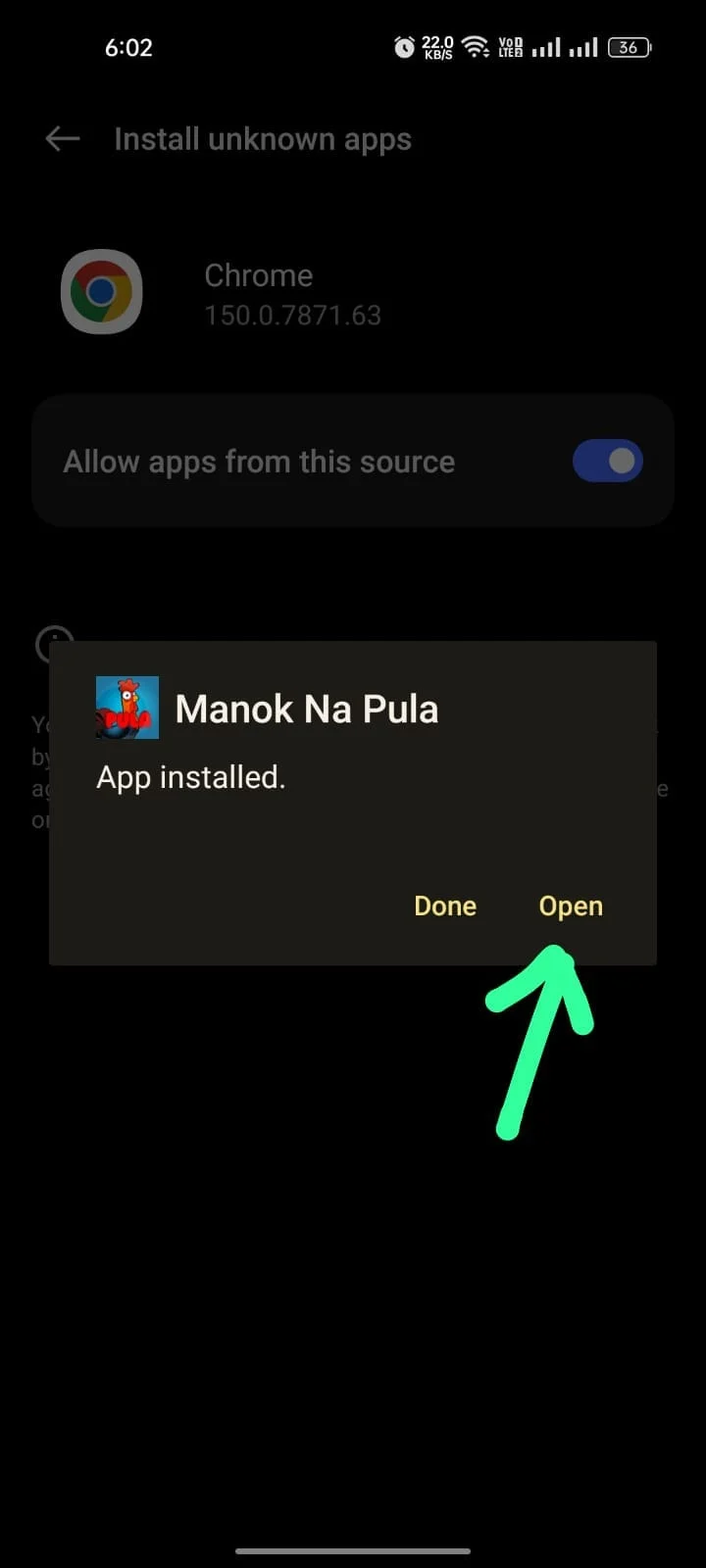
- Launch the game and grant the storage permission on first run, so the save file writes to the correct app-scoped folder.
Why Google Play Protect Flags the Install (and What to Do)
Play Protect checks every sideloaded APK’s signature against Google’s records for that package name — and a modded build is signed by whoever built the mod, not by TATAY, so it never matches. That mismatch triggers the warning; it is not, by itself, a malware detection.
Standard block
A dialog reading “This app was blocked” or “App not installed” with a “More details” / “Install anyway” link tucked underneath. Tap through to that link and choose to proceed to complete the install.
Enhanced Play Protect (Android 13+)
Newer Android can flag an already-installed sideloaded app afterward and prompt removal. Go to Play Store → profile → Play Protect → gear → turn off “Scan apps with Play Protect,” reinstall if removed, then decide whether to re-enable.
Play Services disabled
Rare — on devices where Google Play Services is disabled, Play Protect doesn’t run at all and the install proceeds with no prompt. Listed for completeness, since it explains why some readers see no warning.
None of these three is a sign the file itself contains malware beyond what the signature mismatch already, necessarily, triggers for any modded APK of any app.
Fixing “App Not Installed”: the Signature-Mismatch Walkthrough
“App not installed” or “Package conflicts with an existing package” is the single most common failure — Android requires an update to carry the same signature as the installed version, and the official and modded builds are signed differently.
- Check whether the official version is installed — Settings → Apps → search “Manok Na Pula.” If it’s there, that’s the cause.
- Uninstall it — Settings → Apps → Manok Na Pula → Uninstall. Copy your save folder off-device first if you want to keep progress (next section).
- Clear any leftover app data, not just the app. On Samsung and Xiaomi a leftover com.tatay.manokNaPula data folder can block the install even with the app gone — clear it manually.
- Reboot the device to clear cached package-manager state that can keep the conflict message alive.
- Retry the modded APK install.
If the modded build itself was previously installed and is only being updated to a newer file from the same source, none of this applies — same-signature updates don’t trigger the conflict. It’s specifically switching between the official build and a mod, or between two different mod publishers’ builds, that does.
Keeping Your Save Data When You Switch Builds
Whether a save survives the switch depends on where Android stores it and whether that folder gets copied before the official version is removed.
On Android 11 and later, scoped storage changed where the save lives. It writes to Android/data/com.tatay.manokNaPula/ — the same path as before, but now only the app can write there directly, and reading it from outside requires the Storage Access Framework’s folder picker or a file manager built to request that access (Files by Google, MiXplorer, and Solid Explorer are commonly used).
- Copy the Android/data/com.tatay.manokNaPula/ folder somewhere else on the device (Downloads or SD card) before uninstalling the official version.
- Uninstall the official version and install the mod, following the signature-mismatch steps above.
- Copy the saved folder back to the same path — but do this before launching the modded build for the first time, or the fresh empty save overwrites what you restored.
Skipping the copy step is the reported cause of a specific failure: progress stuck on the same early-campaign chicken after an uninstall/reinstall — a sign the scoped-storage folder wasn’t preserved through the swap.
If the Download Won’t Install: Checking for a Corrupted File
An install that fails with no clear permission or signature-conflict message is often a download that didn’t finish, even when the file looks complete in the downloads list. Compare the downloaded file’s size against the file-details table; a meaningfully smaller file means it was interrupted and needs re-downloading, not re-installing. For a definitive check, run a hash comparison — on Windows: certutil -hashfile [filename] SHA256; on macOS/Linux: shasum -a 256 [filename] — and compare the result against the SHA-256 hash published on the Manok Na Pula Mod APK page. A match confirms the file is intact; a mismatch means re-downloading before trying again.
Installing on iOS or PC Instead
Everything above is Android-native. Manok Na Pula’s APK doesn’t run on iOS directly, and installing on a computer means running Android inside an emulator rather than installing the APK onto the OS itself.
Install on iPhone / iPad
Convert the APK to an IPA and sideload it through a signing tool. The full tool comparison, revocation risk, and step-by-step live on the iOS guide.
Install on Windows / macOS
Run the game through an Android emulator like BlueStacks or NoxPlayer. The PC guide covers emulator setup and the strike-bar key bindings.
Installation FAQ
Ready to install? Grab the current build.
The current APK, with its version and file size, is on the Manok Na Pula Mod APK page. Once it’s running, check the redeem codes page for any active bonus rewards.